Shortcuts in Menu Bar - User Guide
Welcome. Thank you for using the app. Below is the user guide. You can also watch the video tutorial:
System Requirements
Shortcuts in Menu Bar can run on macOS Ventura 13.5 and above. It also supports Dark Mode.
Version 1.2.5 and below can run on macOS Sierra 10.12.
Lite vs Full Version
In the Lite version, you can have only 2 items in the following sections:
- Folders and Files
- Quick Notes.
User-interface
When running, the application displays an asterisk icon in the menu bar (you can change this icon later in the Preferences window). Clicking it opens a menu showing your previously created shortcuts.
The first time you launch the application, the Preferences window will appear automatically. After that, it won't show up on launch, but you can always reopen it by clicking the menu bar icon and selecting Preferences...
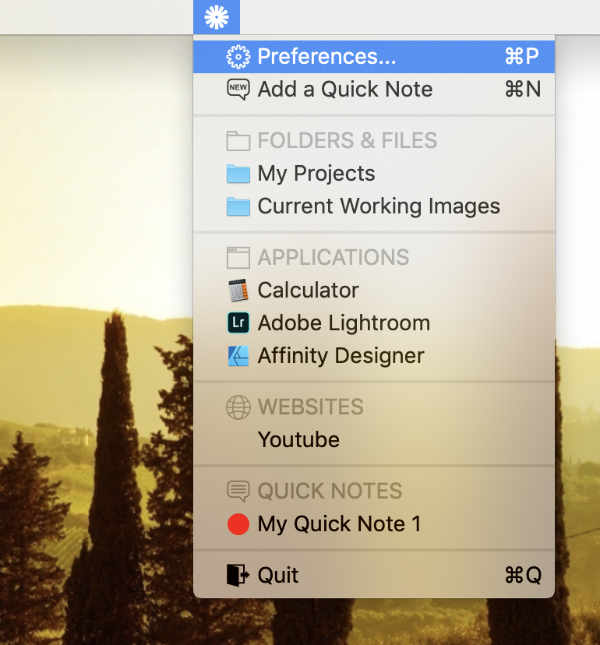
App icon and menu items
Start application at login
By default, the application does not launch automatically at login. If you want to turn on this feature, go to Preferences..., check Launch at login under General tab.
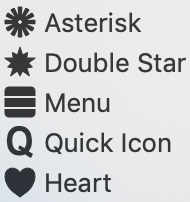
Application Icon in Menu Bar
By default, the application icon in the Menu Bar is an asterisk. You can change it under the General tab of the Shortcuts in Menu Bar Preferences... window.
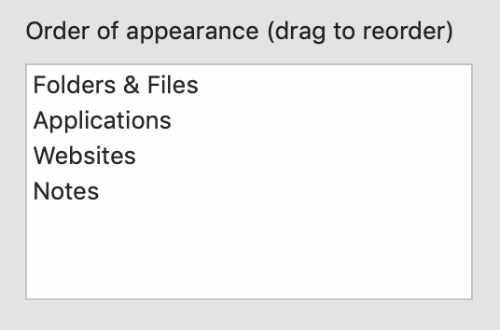
Display order of groups
By default, the application menu displays items in the following order:
- Websites
- Folders and Files
- Applications
- Quick Notes
You can change it under the General tab of the Shortcuts in Menu Bar Preferences... window by drag-and-drop items in the right-hand side list.
Adding an item
To add an item:
- Open the Shortcuts in Menu Bar Preferences... window
- Choose the section you want to add item by clicking corresponding tab
- Click New (this step may not be required if the bolded text above Title starts with Add a...)
- Input Title and URL or Destination or Content
- Choose an icon for the new item if you like. Raw App Icon is available for Folders and Files and Applications sections only. If it is chosen, the icon that appears in the Finder will be displayed on the menu, not in the Preferences window.
- Click Save
Another way to add items is using the Add to Shortcuts in Menu Bar share extension. This extension is available in version 1.2.0 and above. From Safari, click the Share button, then click Add to Shortcuts in Menu Bar. From Finder, choose a file or folder, right click to open the context menu, then click Share > Add to Shortcuts in Menu Bar.
Tips: You can drag an item from Finder and drop it in the Folders and Files section
Tips: Title can be automatically filled, you don't need to input Title in most cases.
Tips: Add to Shortcuts in Menu Bar works with web pages, applications, files and folders only.
Editing an item
To edit an item:
- Open the Shortcuts in Menu Bar Preferences... window
- Choose the section you want to edit item by clicking corresponding tab
- Select the item you want to edit from the list. The bolded text above Title should change to Edit a...
- Edit text in Title and URL or Destination or Content
- Click Save
Deleting an item
To delete an item:
- Open the Shortcuts in Menu Bar Preferences... window
- Choose the section you want to delete item by clicking corresponding tab
- Select the item you want to delete from the list. Drag it from the list and drop it outside the Shortcuts on Menu Bar Preferences... window to delete.
Drag-and-drop doesn't work in Applications section
The Finder does not display /Applications folder by default. It would be easier for you to click Browse and choose the application you want.
Create and view quick notes
You can create, edit, delete and view quick notes as other items. (See above)
You can also add a new quick note by clicking Add a Quick Note from the application menu. A popover appears, input your contents and click Save
You can also edit a note when viewing it. Just edit contents appear in the popover and click Save.
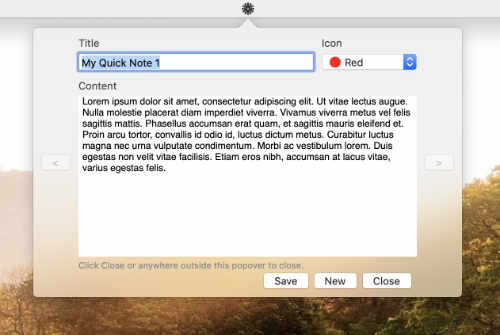
You can view, add and edit notes directly in this popover.
I don't see the Add to Shortcuts in Menu Bar command
If Add to Shortcuts in Menu Bar doesn't appear in the Share menu, follow these steps to enable it:
- Go to the Apple Menu > select System Preferences. This will open the System Preferences window.
- Click Extensions.
- Click on Share Menu in the lefthand pane.
- Check Add to Shortcuts in Menu Bar.
If Add to Shortcuts in Menu Bar still doesn't display. Please contact binhnt@binhnguyensoft.com.
Version history
2.2.1
- May 13, 2026- Fix an issue where applications added via Preferences or drag-and-drop still prompt for access permissions.
- Prevent adding duplicate files, folders, or applications with the same path and notify the user if they already exist.
2.2.0
- May 12, 2026- Global Hotkey Support: Quickly open the app menu using a shortcut. The default is Command + Shift + ', and you can fully customize it in Preferences.
- Customizable UI: You can now adjust icon sizes and font settings in the Menu Bar for better visibility.
- Smart Web Icons: Added an option to automatically use the website's favicon as the icon for your web shortcuts.
2.1.0
- May 7, 2026- Re-add the "Add to Shortcuts in Menu Bar" share extension. You can add items from your browser or Finder by clicking Share > Add to Shortcuts in Menu Bar.
- You can also highlight text on a webpage in Safari (other browsers may not fully support this), then click Share > Add to Shortcuts in Menu Bar to save that text to Notes.
2.0.0
- April 27, 2026- Rewrite the entire user interface using the SwiftUI framework for a more modern, sleek, and flexible experience.
- Reorder Google services to suit your preference.
- Performance optimizations and bug fixes.
1.2.6
- April 20, 2026For macOS 13.5 Ventura and above. Because the app now uses a new application directory structure that follows Apple's updated standards, your existing data will not be displayed. If you need to migrate your data, please contact binhnt@binhnguyensoft.com.
- Add a feature that allows access to certain Google services (this feature may not be fully stable yet; your feedback is needed to improve it in future versions).
- Fix some minor bugs.
- Optimize code and third-party libraries
- Remove Add to Shortcuts in Menu Bar share extension
1.2.5
- April 23, 2024- Change Support email address and website.
- Minor bug fixes.
1.2.4
- December 10, 2021- Change the Support email address.
- Raw App Icon is now default for Applications and Folders and Files sections.
- Support Apple Silicon.
1.2.3
- July 11, 2020- Minor bug fixes.
1.2.2
- May 16, 2020- You can change the size of the Note Popover.
- Minor bug fixes.
1.2.1
- August 3, 2019- When adding from Safari share extension, web page title will be the default text for Title.
- Minor bug fixes.
1.2.0
- July 29, 2019- Add the "Add to Shortcuts in Menu Bar" Share Extension, now you can add web pages, applications, folders or files by clicking Share > Add to Shortcuts in Menu Bar.
- You can change the font size of the Note PopOver from the Preferences window.
- Minor bug fixes.
1.1.0
- July 23, 2019- Popover notes will be automatically saved. You don't need to hit the Save button anymore. It would be more convenient for you.
- The menu item: Preferences... is moved to bottom, just before Quit
- Bug fixes.
1.0.2
- July 3, 2019- First released on the App Store.
- Bug fixes.